Creating a Custom Connector
Archive isn’t listed in Claude’s or ChatGPT’s connector directory yet, so in both you add it by hand as a custom connector. That’s a listing status, not a limitation — the server behaves identically either way.
This page covers creating the connector, which happens once. In a team workspace an admin does it and nobody else repeats it; everyone then signs in individually, which is Connecting an Agent.
Server URL: https://app.archive.com/api/v2/mcp
Every client asks for the same two things — a name and that URL — and nothing else. In particular, you never need an OAuth client ID or secret from us. Archive publishes its OAuth metadata and supports dynamic client registration, so the client discovers the endpoints and registers itself. Any field asking for a client credential can be left empty.
Claude
The steps are identical in the browser and in the desktop app: both use the same Connectors panel.
Open Settings → Connectors, then Add → Add custom connector. (Browse connectors, right above it, is the directory — that’s where Archive will live once it’s listed, and why you’re taking the custom route today.)
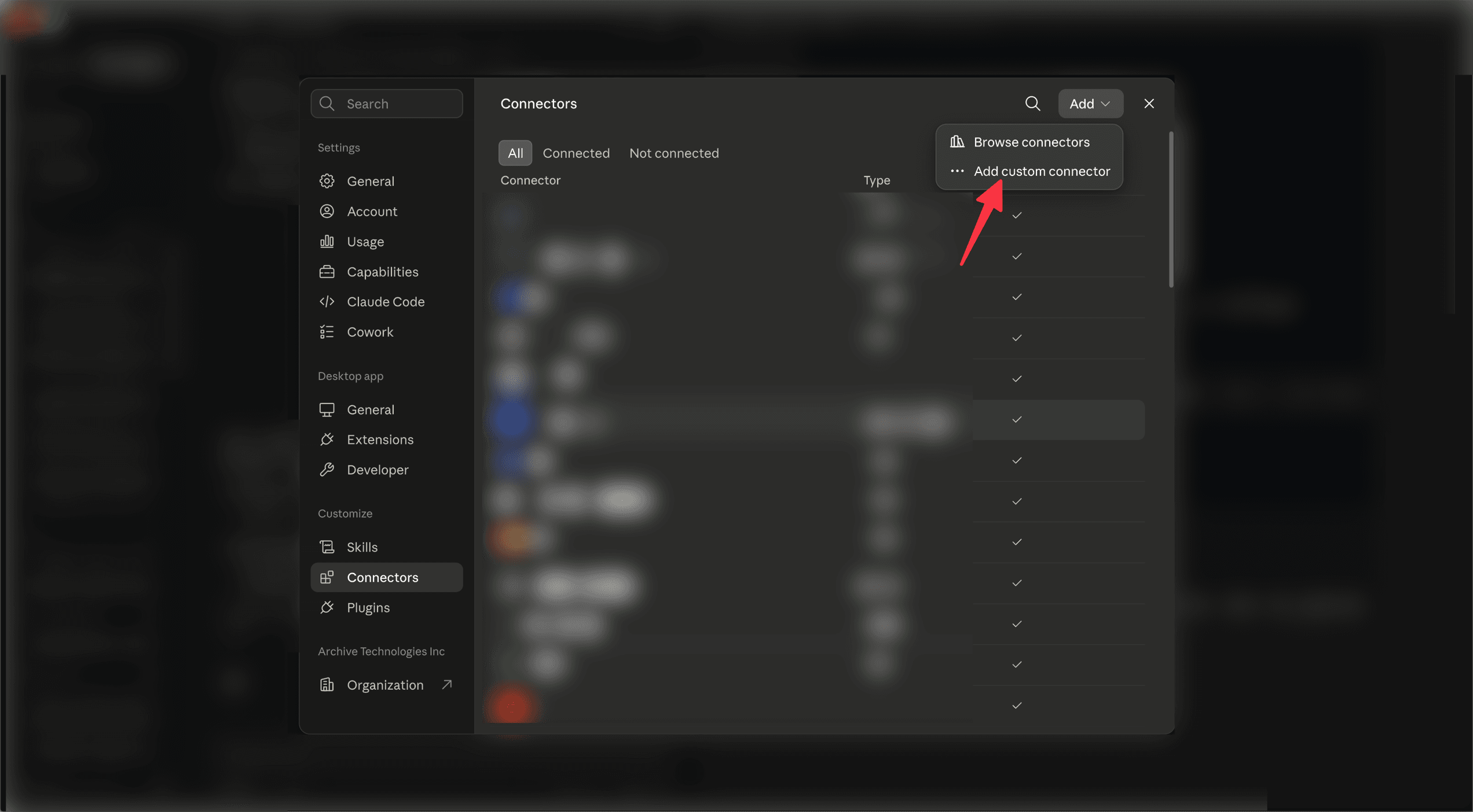
Give it a name, paste the server URL, and leave everything under Advanced settings empty:
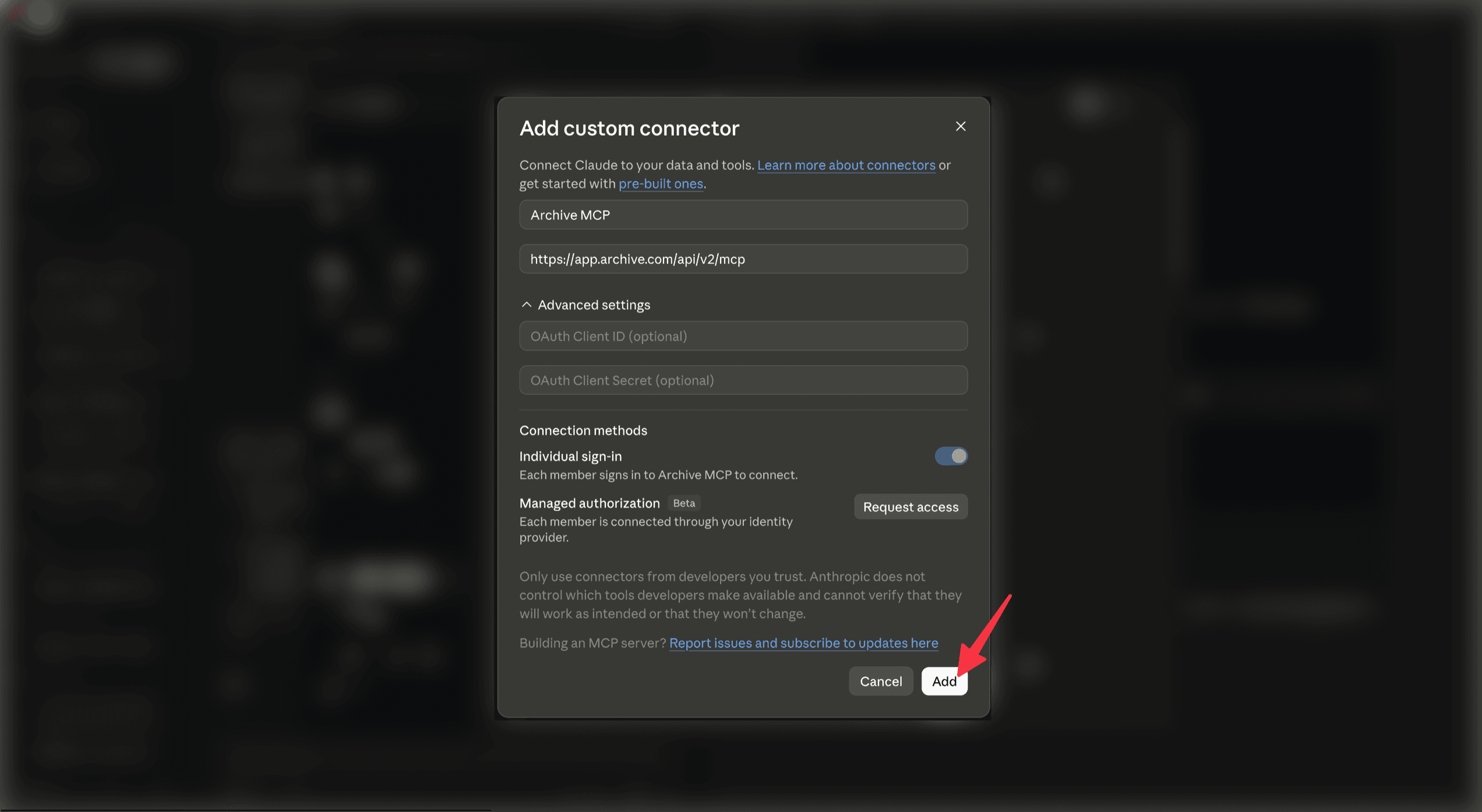
| Field | Value |
|---|---|
| Name | Anything you like — Archive MCP works |
| URL | https://app.archive.com/api/v2/mcp |
| OAuth Client ID / Secret | Leave blank — see above. |
| Connection methods | Leave Individual sign-in on: each member signs in to Archive themselves. Managed authorization connects members through your own identity provider instead; it’s an Anthropic beta you have to request access to, and we haven’t verified it against Archive, so treat it as untested rather than supported. |
Claude asks you to only add connectors from developers you trust, but there’s nothing to tick — no unreviewed-server warning like ChatGPT’s.
Click Add. Archive now appears in your connector list as not connected — continue at Connecting an Agent → Claude to sign in and set tool permissions.
ChatGPT — Business or Enterprise
On these plans a workspace admin creates the connector once for everyone. Go to the admin console at chatgpt.com/admin/apps and click Create:
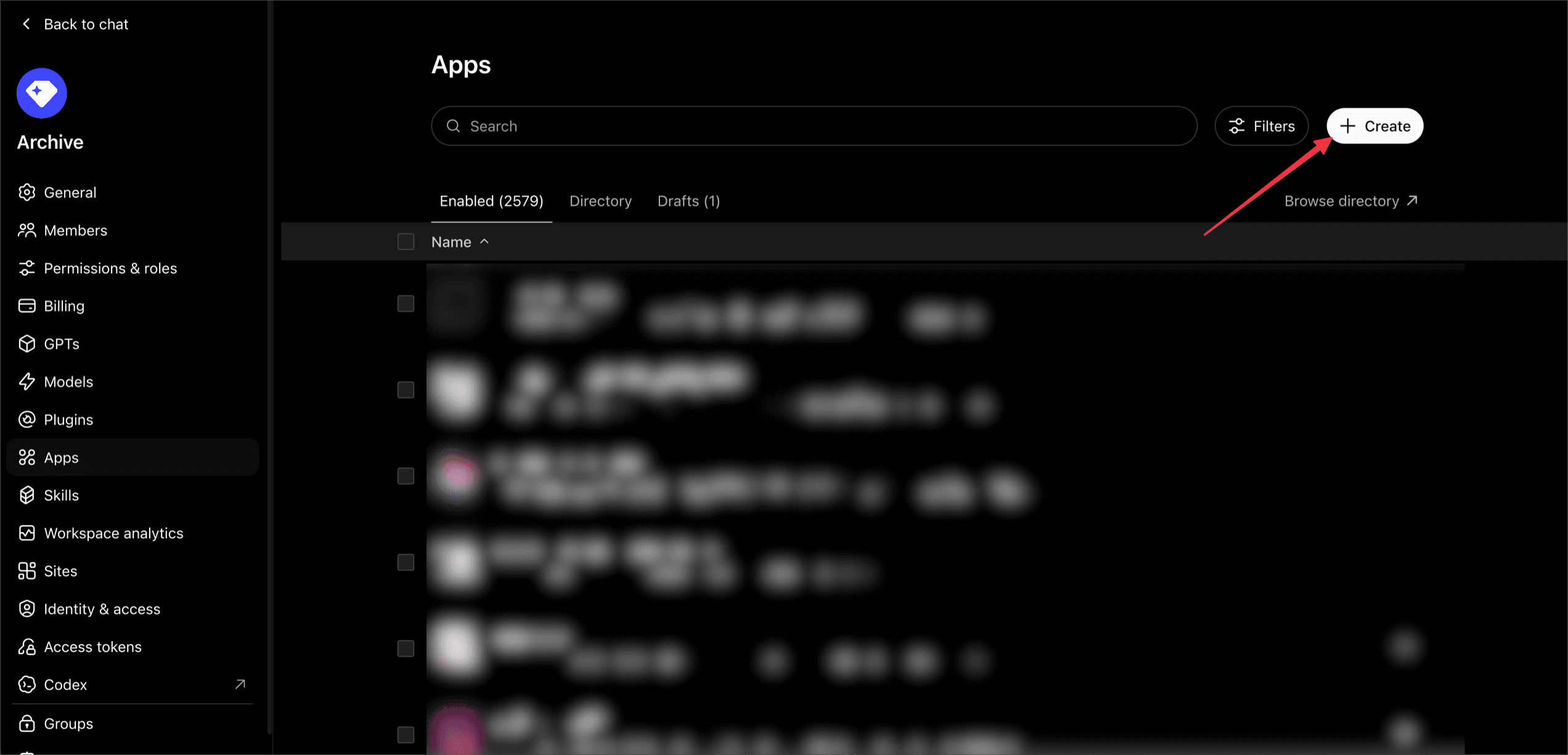
Fill the New App dialog:
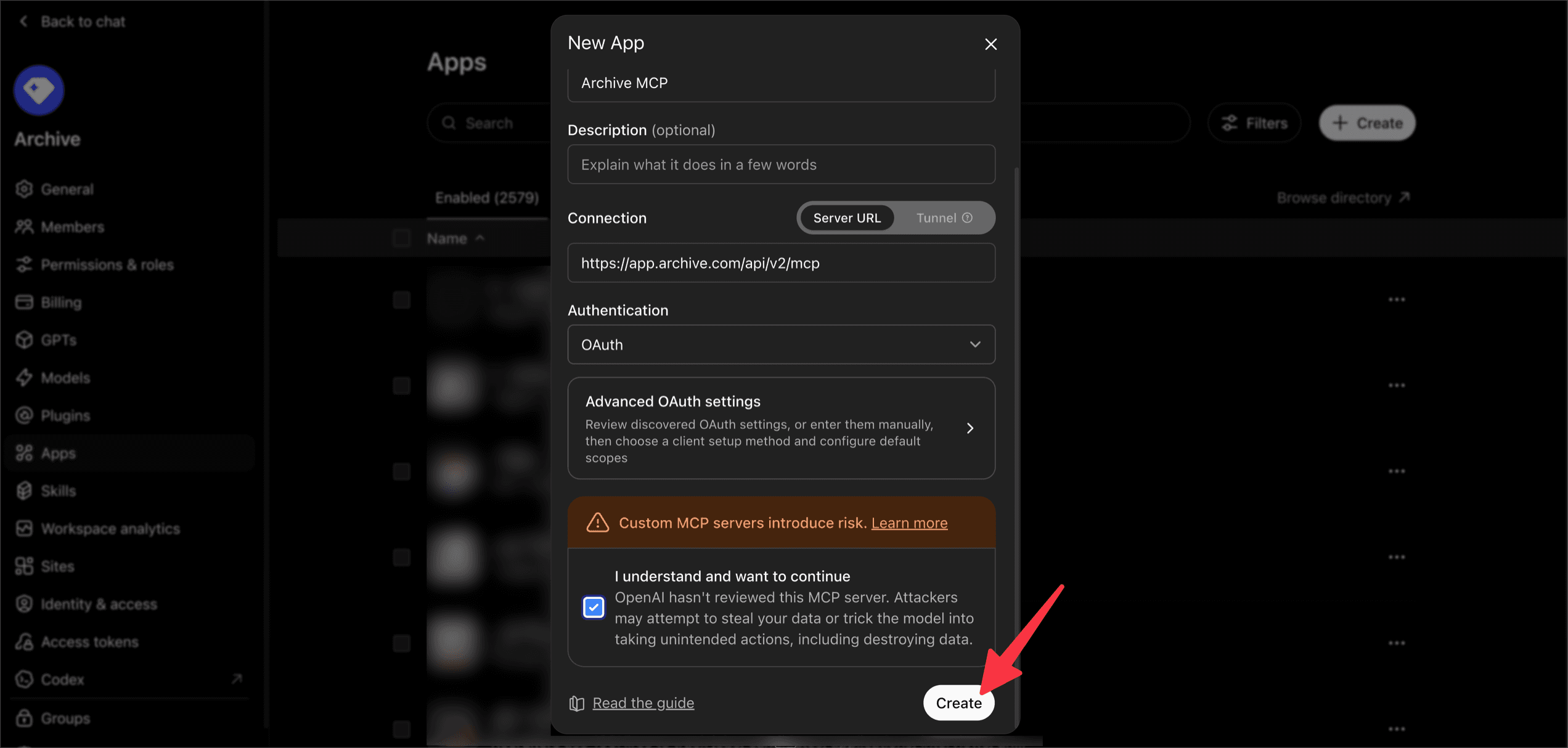
| Field | Value |
|---|---|
| Name | Anything you like — Archive MCP works |
| Description | Worth filling in. It’s shown to your team in the Plugins browser, and it’s the only hint they get about what the connector is. |
| Connection | Server URL, not Tunnel |
| URL | https://app.archive.com/api/v2/mcp |
| Authentication | OAuth |
| Advanced OAuth settings | Leave as discovered — see above. There’s nothing to fill in. |
You’ll also have to tick “I understand and want to continue”. ChatGPT shows that warning for every MCP server it hasn’t reviewed, which today includes Archive — it isn’t specific to us, and it disappears for any connector once it’s listed in the directory. Then click Create.
That makes Archive available to the workspace, but it doesn’t switch it on for anyone. Each member enables and authorizes it themselves — see Connecting an Agent → ChatGPT.
ChatGPT — Plus or Pro
There’s no admin console on these plans, so you add the connector yourself. Turn on Developer Mode under Settings → Apps & Connectors, then add a connector with the same server URL.
The connection is read-only on Plus and Pro: write tools aren’t available regardless of what you grant during authorization, so you get the 29 read tools and none of the 24 writes.