Workspaces
Before you can query creators, items, or collections, you need to find your workspace ID.
A workspace in Archive is the container for all your data — your creators, content, social profiles, collections, and settings. Each workspace is independent and belongs to a specific brand or team. If you manage multiple brands, you may have access to multiple workspaces.
In the Archive UI, you can switch between workspaces from the top menu. Via the API, you discover your workspaces with a query.
Two different queries
There are two workspace queries and they do different things:
| Query | What it does | Needs WORKSPACE-ID header? |
|---|---|---|
workspaces (plural) | Returns all workspaces you have access to | No |
workspace (singular) | Returns only the one workspace specified in your WORKSPACE-ID header | Yes |
You always start with workspaces (plural) to discover your IDs, then set the WORKSPACE-ID header for all subsequent queries.
Step 1: List your workspaces
Before making any other API calls, you need to discover your workspace ID. This query does not require the WORKSPACE-ID header — only your authentication token. It returns all workspaces your token has access to:
query ListWorkspaces {
  workspaces(first: 20) {
    nodes {
      id
      name
    }
    totalCount
  }
}
Example response:
{
  "data": {
    "workspaces": {
      "totalCount": 3,
      "nodes": [
        { "id": "a4f2e8b1-3c7d-4a09-b265-18e0f9dc42a7", "name": "Glow Brand Studio" },
        { "id": "b5e3f9c2-4d8e-5b10-c376-29f1a0ed53b8", "name": "Glow Brand — EU" },
        { "id": "c6f4a0d3-5e9f-6c21-d487-30a2b1fe64c9", "name": "Glow Brand — APAC" }
      ]
    }
  }
}
Pick the workspace you want to work with and copy its id.
If you have access to more than 20 workspaces, you’ll need to paginate through the results. See Pagination for how to fetch the next pages.
Using with AI:
“List all my Archive workspaces and show me their names and IDs”
Step 2: Set your workspace ID
Now that you have the ID, you need to set it so the API knows which workspace to query.
If you’re using an API client
Add the workspace ID in the Headers tab (example shown in Postman):
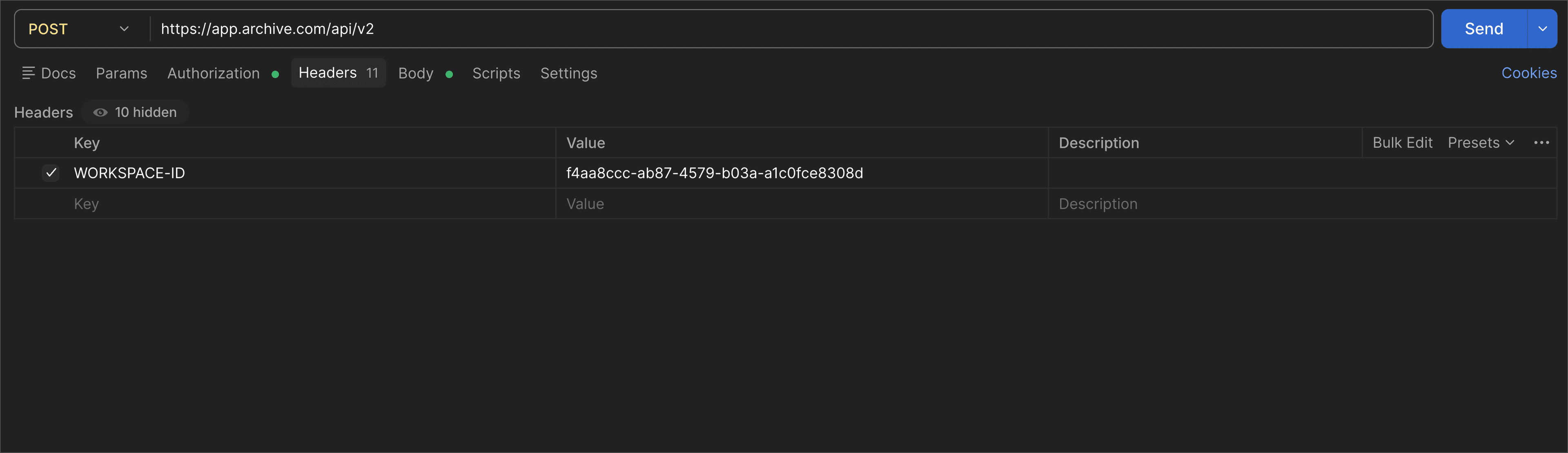
| Key | Value |
|---|---|
WORKSPACE-ID | your_workspace_uuid |
If you’re using Claude
Add the workspace ID to your .env file (or ~/.env.shared) alongside your token:
ARCHIVE_APP_TOKEN=your_token_here
ARCHIVE_WORKSPACE_ID=your_workspace_uuid
This way, Claude can read it automatically at the start of every conversation — even new ones. Without this, Claude would need to run the workspaces query every time you start a new conversation.
If you’re using a Claude Project, you can also add it directly to your Project Instructions:
My workspace ID is: your_workspace_uuidTip: Save your workspace ID somewhere permanent — whether in your
.envfile, your Claude Project Instructions, or a note. You’ll need it every time you make API requests, and looking it up each time is unnecessary friction.
Step 3: Get workspace details
To see more details about your workspace — including which hashtags and mentions it’s tracking:
query ListWorkspacesDetailed($first: Int, $after: String) {
  workspaces(first: $first, after: $after) {
    nodes {
      id
      name
      hashtags {
        id
        name
        provider
        type
      }
      mentions {
        id
        name
        provider
        type
      }
    }
    pageInfo {
      endCursor
      hasNextPage
      hasPreviousPage
      startCursor
    }
    totalCount
  }
}
Example response:
{
  "data": {
    "workspaces": {
      "totalCount": 2,
      "pageInfo": {
        "endCursor": "eyJpZCI6Ii4uLiJ9",
        "hasNextPage": false,
        "hasPreviousPage": false,
        "startCursor": "eyJpZCI6Ii4uLiJ9"
      },
      "nodes": [
        {
          "id": "a4f2e8b1-3c7d-4a09-b265-18e0f9dc42a7",
          "name": "Glow Brand Studio",
          "hashtags": [
            { "id": "1001", "name": "glowbrand", "provider": "INSTAGRAM", "type": "HASHTAG" },
            { "id": "1002", "name": "glowbrand", "provider": "TIKTOK", "type": "HASHTAG" },
            { "id": "1003", "name": "glowbrand", "provider": "YOUTUBE", "type": "HASHTAG" }
          ],
          "mentions": [
            { "id": "2001", "name": "glowbrand", "provider": "INSTAGRAM", "type": "MENTION" },
            { "id": "2002", "name": "glowbrand", "provider": "TIKTOK", "type": "MENTION" },
            { "id": "2003", "name": "glowbrand", "provider": "YOUTUBE", "type": "MENTION" }
          ]
        }
      ]
    }
  }
}
This tells you what each workspace is tracking — useful for understanding the scope of your data before querying items.
About the Tag object — both hashtags and mentions return an array of Tag objects with these fields:
| Field | Type | Description |
|---|---|---|
id | ID | Unique tag identifier |
name | String | The hashtag or mention name (without # or @) |
provider | Enum | Platform: INSTAGRAM, TIKTOK, YOUTUBE |
type | Enum | HASHTAG or MENTION |
The same Tag fields are available on both workspaces (plural) and workspace (singular) queries.
Current limitations of the workspace sources data:
- Connected accounts and tracked mentions are not distinguished — both appear as
MENTIONtype with no field indicating whether the entry is a connected account or a tracked @mention.- TikTok v.1 and v.2 connections are merged — if a workspace has two TikTok connections for the same handle (v.1 and v.2), the API returns only one entry. There is no way to differentiate them.
- Connection status is not available — active and disconnected sources look identical in the API response. There is no
statusfield on the Tag object.
From here, all workspace-scoped queries (creators, items, collections, etc.) will work.